Published · By the Screen Trace team
Screen Time says one thing. Battery settings show another. Does that mean an app was secretly opened? Usually, the first step is simpler: check whether you are comparing the same device, date range and type of activity.
Screen Time and Battery activity answer different questions
Screen Time helps you review how you use your device. Battery settings help explain activity alongside energy use. Both can be useful when reviewing an unfamiliar period, but they are not interchangeable histories.
| Question | Screen Time | Battery activity |
|---|---|---|
| Which apps account for my use? | A useful starting point for usage patterns | A complementary view linked to battery use |
| Was an app working in the background? | Not a complete account of background work | May show background activity explicitly |
| Why are the totals different? | Check report scope and selected device | Check the time range and activity label |
| Who read my messages? | Does not identify a reader | Does not identify a reader |
| What happened at an exact minute? | A summary cannot reconstruct every action | An activity summary is not a full event sequence |
What Screen Time can show
Open Settings → Screen Time → See All App & Website Activity, or the corresponding activity report. Choose the relevant date and, when applicable, the device.
This is the practical starting point for questions such as “Which apps took up most of my day?” or “Is there usage in the part of the evening I want to review?”
Screen Time can combine reports across devices signed in to the same Apple Account. Make sure you are viewing the intended iPhone. A usage total or hourly bar does not reveal a specific chat, a particular photo or a person’s identity.
Reference: Apple — Get started with Screen Time on iPhone.
What Battery activity can show
Open Settings → Battery. Newer layouts may offer View All Battery Usage; older versions may show time-range graphs and a Show Activity control. Select the available day or interval before reading an app’s breakdown.
Battery information relates app and system activity to power consumption. Depending on the layout, it can separate on-screen activity from background work. Battery percentage is an energy measure, not a percentage of time spent reading an app.
A high battery share therefore does not, by itself, establish long hands-on use. Check the activity label rather than treating every entry as a foreground opening.
References: Apple — Check battery usage and Apple — Understand iPhone battery usage and health.
On-screen and background activity: the difference that matters
On-screen activity is useful context for reviewing visible app use, subject to the source’s labels and scope. It still does not tell you what someone saw within the app.
Background activity means work can occur without that app being the visible foreground screen. Examples include audio playback, content syncing and downloads. Some activity can continue while the device is locked.
Imagine a music app plays while you walk with the phone in your pocket. Its activity and battery use need not imply that you spent that whole period looking at the music app. The same distinction matters when an unfamiliar entry makes you worry that someone touched your phone.
These are examples of why the categories matter, not a diagnosis of any particular unexplained entry. Read the labels and compare with what you know about your device at that time.
Why the numbers can differ
A mismatch is a reason to check the comparison, not proof that either screen is showing the complete truth about a particular action.
- Different periods. A day, a rolling window and a selected graph interval are different scopes. Verify the start and end of each view.
- Different devices. Screen Time may include another device; Battery describes the device whose settings you opened.
- Different activity types. Background work and visible app use should not be added together or compared as though they were identical measurements.
- Different units. Battery percentages and minutes are not substitutes for one another.
- Collection or display gaps. A missing summary is not a guarantee that no activity took place. Note the gap rather than filling it with an assumption.
Do not apply an arbitrary time adjustment simply to make two views match. First confirm their dates, time zones and event meanings.
A simple example of a misleading comparison
The following is a fictional example, not measured app behavior or a customer’s records:
| What you see | What to ask next |
|---|---|
| Screen Time lists several minutes for an app on Tuesday | Is this Tuesday on the intended iPhone? |
| Battery lists a longer background period | Does the selected period cover Tuesday, and what was the app doing in the background? |
| You do not remember opening it during that interval | Could background work or a different comparison scope explain the entry? |
The longer entry does not automatically mean someone spent that time reading your messages. Neither summary shows the contents of the app or identifies an operator.
How to review the two views together
- Write down the date and period you want to check.
- Open Screen Time and choose the intended device.
- Open Battery and match the period as closely as the interface allows.
- Save both views with their dates and activity labels visible.
- Compare the categories rather than expecting identical totals.
- Record unexplained gaps and contradictions alongside any apparent matches.
If your question is about a particular app’s history, continue with How to Check App Activity History on iPhone. If you suspect someone physically used the phone, our four-method privacy guide also covers App Privacy Report and diagnostic records.
When a diagnostic timeline can add context
Sometimes a usage total is not enough: you want to review the order of recognizable app events and supported lock or unlock indicators. A diagnostic archive may retain relevant records that a tool can organize.
Screen Trace analyzes an archive you actively select on your iPhone and organizes supported events into a timeline and PDF. Original files and report content are processed on your device rather than uploaded to our servers.
- View the free anonymous sample to understand the report.
- Follow the in-app guide to save a full diagnostic archive.
- Import it for free format and readability checking.
- Review the analysis scope and purchase terms before using a paid report credit.
- Compare retained events with the other sources and your known use.
The free check does not guarantee a particular date or event. Report coverage depends on the file and selected option. Screen Trace cannot supply records that were not retained, identify who held the phone, or show which message or photo was viewed.
Frequently asked questions
Which is more accurate: Screen Time or Battery?
Choose the source suited to the question. Usage patterns and energy-related activity are different measurements. Neither is a complete history of every action.
Does background activity mean someone opened the app?
No. Background work alone does not establish a foreground opening or physical use by another person.
Does zero Screen Time prove that nobody used my iPhone?
No. Check the device, period, collection state and available records. A missing entry is not proof of no use.
Can I check the exact time a chat was read?
These summaries do not provide a per-message reading history. An app event in a diagnostic report does not reveal chat contents either.
Can Screen Trace make the two totals match?
It organizes supported records from the file you import; it does not rewrite Apple’s summaries or guarantee that their totals can be reconciled.
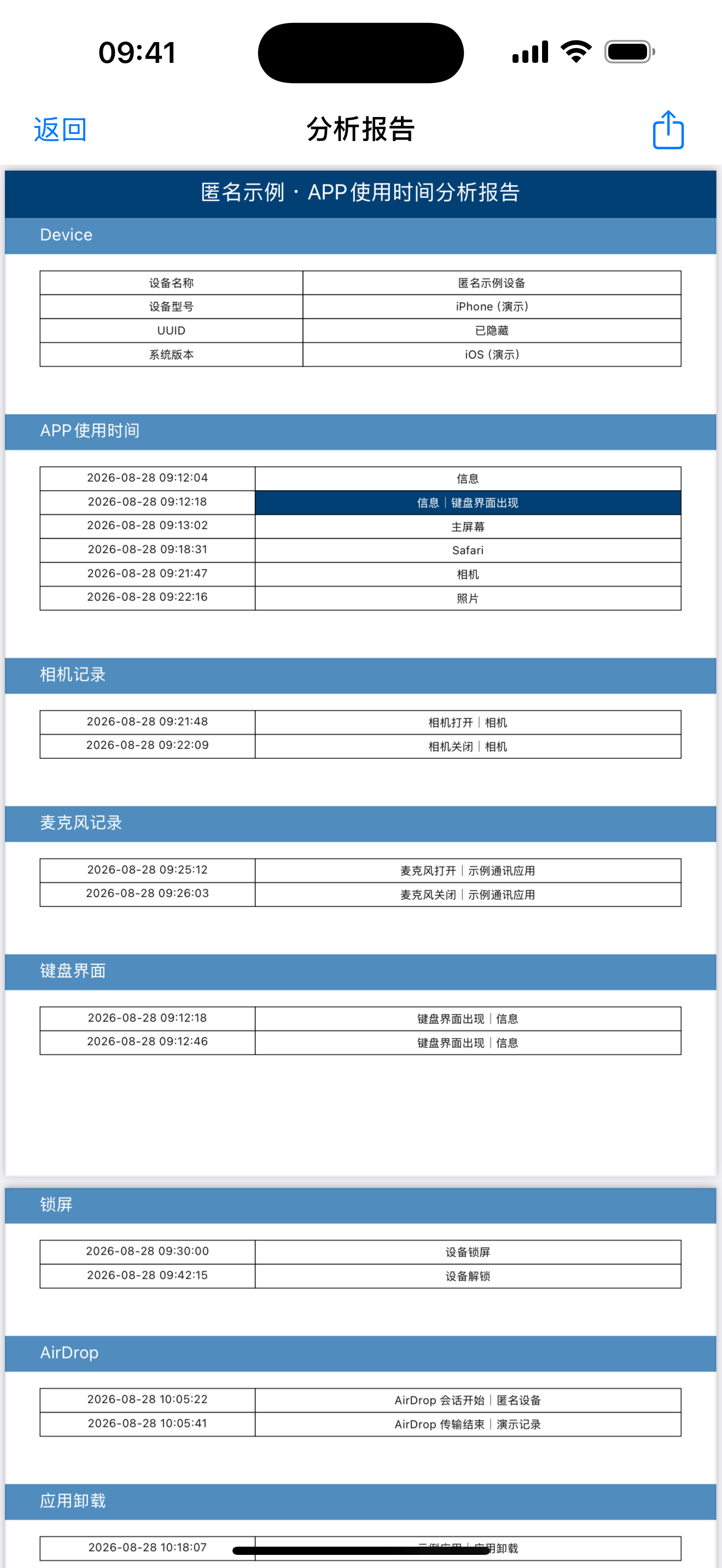
See a sample Screen Trace report
This is the built-in anonymous demonstration report, shown in Chinese with example records. It illustrates the format, not a customer’s data or guaranteed coverage for your device.
Open the anonymous sample screenshot (Chinese)
Explore Screen Trace
Preview the free anonymous sample before choosing a paid report. Free file checking verifies format and readability; it does not guarantee coverage of a particular date or event.