Published · Screen Trace developer · Official guide
If you think someone used your iPhone while you were asleep or away, start with the period you want to review. App activity can help you check a timeline, but it does not identify who held the phone or which messages they read. Missing records do not rule out use.
For your own device or files you have explicit authorization to analyze. Keep original files; available records depend on what the system retained.
Separate physical use from account or remote access
Someone holding an unlocked phone, shared account access and unexpected sensor access are different concerns. This guide focuses on reviewing past activity on your own iPhone.
For current sharing and account settings, review Settings → Privacy & Security → Safety Check → Manage Sharing & Access, where available. Follow Apple’s Safety Check guidance. This manages sharing and access; it is not a history of every unlock or message read.
Screen Trace analyzes retained system records. It is not a spyware scanner and cannot establish remote monitoring from an activity report alone.
Step 1: Define the period and device
Write down a specific question, such as which activity was recorded on this iPhone between 11 pm and 12:30 am. Note when you know you used it, the model, iOS version and time zone.
The order of cards in the app switcher, a notification or a battery change does not independently identify an operator or establish a particular action.
Step 2: Begin with Screen Time
- Open Settings → Screen Time.
- Open See All App & Website Activity, or the corresponding activity report.
- Select the day and review app durations and activity distribution.
- If Share Across Devices is enabled, select the intended iPhone rather than another device or combined figures.
Labels vary by iOS version. Enabling collection now cannot recreate data that was never collected. Hourly usage bars do not show every individual opening or exit. See the app activity guide for more detail.
Step 3: Review diagnostic records for more context
Retained system diagnostics may provide app activity and screen-lock or unlock indicators. Screen Trace is an iPhone app that locally analyzes a diagnostic archive you select and organizes recognizable records into a timeline.
- Preview the free anonymous report sample on the app’s home screen.
- Follow its file guide to generate and save an intact sysdiagnose archive.
- Choose New Analysis and select the file for free format and readability checking.
- Review the analysis option and purchase terms, then decide whether to use a paid report credit.
- Generate the PDF and review the intended period, distinguishing app, lock, unlock and other events.
Free file checking does not display the full activity details or guarantee coverage of your requested date. Available records depend on the archive and selected option. Original archives and report content are processed locally and are not uploaded to the developer’s servers.
Interpret the sequence without assuming an identity
In a fictional example, an unlock at 23:18, a chat app event at 23:19 and a later lock event would be a sequence to review. First check the event types, source and time zone. A generic app event is not automatically a foreground interaction.
That sequence alone does not identify who unlocked the phone, establish continuous interaction, or show which conversation was read, captured or forwarded. Describe the visible records separately from conclusions.
View the anonymous sample
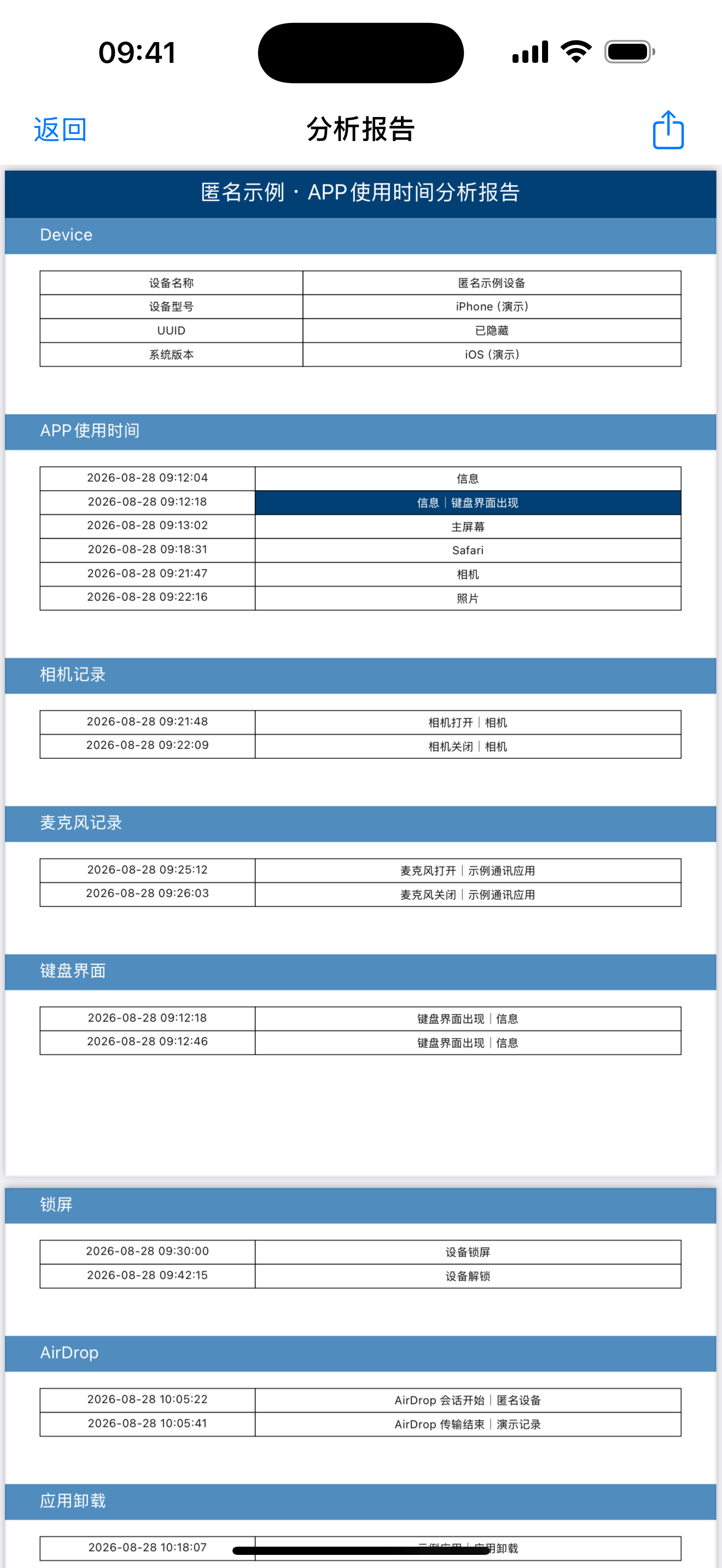
This screenshot shows the app’s built-in demonstration report in Chinese, using sample data. It illustrates the layout; it does not promise the same sections or historical coverage for your device.
Open the anonymous sample screenshot (Chinese)
Common questions
Can it tell me who used my phone?
No. Activity timestamps do not establish an operator’s identity.
Can it show which messages or photos were viewed?
Screen Trace does not provide message text, a photo-viewing list or typed content. An app event or keyboard-interface event does not reveal that content.
Does no unlock event mean nobody used it?
No. Records can be missing, and the device may already have been unlocked.
How far back can I check?
There is no fixed number of days for every iPhone. Retention, collection timing, OS versions and parser support affect coverage.
What about camera or microphone access?
Review an already-enabled App Privacy Report. See how the three record sources differ.
References
Apple references explain built-in features and diagnostic resources. Screen Trace instructions and product descriptions are written by its developer; these references are not an Apple endorsement.
Explore Screen Trace
Preview the free anonymous sample before choosing a paid report. Free file checking verifies format and readability; it does not guarantee coverage of a particular date or event.